Set up the Now brief and Now bar on your Samsung phone

The Now brief feature on Galaxy phones running Android 15 and One UI 7 or higher, like the Galaxy Z TriFold and S26 series, provides curated AI information that highlights weather updates, upcoming events, and more. You’ll see personalized insights based on your schedule, needs, and reminders, so you can be prepared for any situation. The Now bar, on the other hand, is a toolbar that provides quick access to various tools and relevant information that includes live notifications for sports, maps, Now brief, active media players or timers, and more, allowing you to stay informed and connected.
A Galaxy S25 displaying daily briefing screens, including Good morning, For your commute, and Evening brief.

Set up the Now brief and Now bar on your Samsung phone

Now brief

Note
  • Galaxy AI basic features provided by Samsung are free. Any Samsung enhanced AI features and all third party AI features are subject to different terms and may be subject to fees. (Galaxy AI basic features are listed under "Advanced intelligence" in Samsung Services Terms and Conditions.)
  • Now brief with Galaxy AI is available on select phones and tablets running Android 14 with One UI 6.1 or higher. If the feature is not available on your device, it may not be compatible. Ensure your device is updated.
  • Now brief displays daily information from select apps (some apps may require an internet connection).

Set up Now brief

Once it’s been set up, Now brief will appear on the Now bar when the screen is locked, or you can view it as a widget on your Galaxy phone’s Home screen. You can customize the Now brief, so you only see the information that is important to you.

  1. Navigate to and open Settings, then tap Galaxy AI, and then tap Now brief.
    The Now brief option highlighted on the Galaxy AI screen.
  2. Tap Content to include and select the categories that interest you. For instance, you can select from Health and wellness, Travel, Events and tasks, Phone settings, news, and Smart home. When you’re finished, tap Back.
    The Content to include screen, displaying Health and wellness, and Travel options enabled.
  3. To listen to the audio version of your brief with a tap of a button, leave the  Audio brief switch turned on next.
  4. Tap Expand Now brief without unlocking to view full briefings when tapping the Now brief in the Now bar while the screen is locked.
  5. Tap Get richer Insights and turn on the switches for the available partner apps to receive more personalized content.
  6. Tap Manage personal data to adjust data collection settings, such as personal information and interests.

Access your Now brief

You can access your briefings from your Lock screen, Home screen, or from the Edge panel.

  1. Navigate to and tap Now brief from the bottom of the Lock screen, the Home screen widget, or open the Edge panel by swiping in from the right side of the screen.
  2. Depending on the time of day, it may say “Good morning,” “Good afternoon,” or “Tonight’s brief.”
    A Good afternoon brief screen displaying weather and location information.
    Note: If needed, tap Start Now brief.
  3. You can review your morning, afternoon, or evening briefing.
  4. Tap the Settings icon to open the Now brief settings menu.
  5. If desired, you can change the categories by tapping Content to include again.
Read less

Now bar

Note
  • Now bar with Galaxy AI is available on select phones and tablets running Android 14 with One UI 6.1 or higher. If the feature is not available on your device, it may not be compatible. Ensure your device is updated.
  • A screen lock must be enabled to use the Now bar.

You can also get personalized live notifications about ongoing activities such as sports, recording, and Maps, which will appear on the Lock screen, the status bar, and at the top of the Notification panel.

  1. Navigate to and open Settings, and then tap Lock screen and AOD or Lock screen.
  2. Tap Now bar, and then tap View more instead.
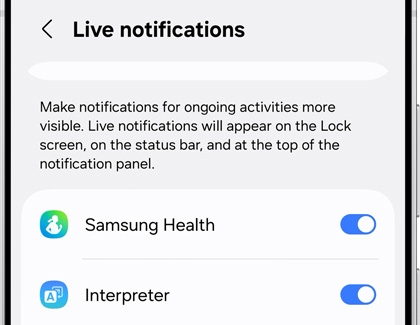
  3. Turn on the switches next to the categories that interest you.
    The Live notifications settings screen on a Galaxy S25, showing toggles enabled for Samsung Health and Interpreter
  4. Tap Back, and then tap the switches next to Media player and Current mode if desired.
  5. To use the Now bar, double tap the screen or press the Power button to wake the screen.
  6. Swipe upward on the Now bar and select an item that interests you.
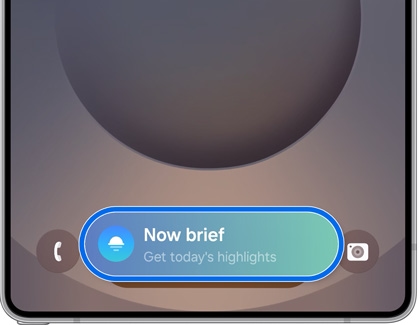
  7. Touch and hold the Now bar to open more options, such as removing categories or changing settings.The Now brief bar displayed on the Lock screen of a Galaxy S25
Read less
Was this content helpful?
Table of contents
We're here for you

Contact Samsung Support

Contact us online through chat and get support from an expert on your computer, mobile device, or tablet. Support is also available on your mobile device through the Samsung Members App.

