Clear the browsing data in Chrome on your Galaxy phone or tablet

Internet browsers like Chrome keep track of every web page you visit, which has its pros and cons. It's convenient if you want a site to remember your shipping details for shopping, but it's not so great if you're concerned about privacy. Residual data can also accumulate in your cache and slow down the Chrome browser. If you're worried, you can easily clear your browsing data to help clean things up.
A Galaxy S26 Ultra phone showing the Web and App Activity auto-delete options screen.

Clear the browsing data in Chrome on your Galaxy phone or tablet

Maybe you're searching for someone's birthday present and don't want them to accidentally see your history. Just clear your browsing data to make it disappear.

  1. Navigate to and open Chrome, and then tap the Tools icon (the three vertical dots).
  2. Tap Settings, and then tap Privacy and security.
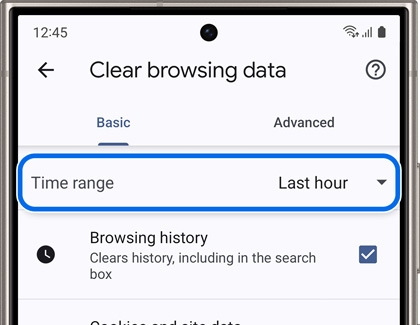
  3. Tap Clear browsing data, and then check off your preferred settings. You can also tap the Time range drop-down menu to choose how much data you want to delete.
    Galaxy phone screen showing the 'Clear browsing data' menu with 'Last hour' selected as the time range
  4. When you're ready, tap Clear data. If you have a lot of data on your phone, it may take a minute or two for it to completely clear.

Was this content helpful?
Table of contents
We're here for you

Contact Samsung Support

Contact us online through chat and get support from an expert on your computer, mobile device, or tablet. Support is also available on your mobile device through the Samsung Members App.

