What is Samsung Smart Switch
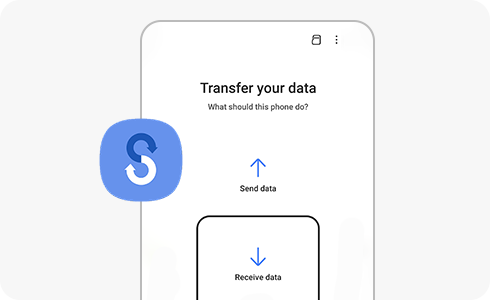
What is Samsung Smart Switch?
Samsung Smart Switch is a powerful tool designed to help users effortlessly transfer data between devices, including Samsung Galaxy smartphones, tablets, iPhones, Android devices, and Windows Mobile phones. Whether you're upgrading to a new Galaxy device or switching platforms, Smart Switch ensures a smooth and efficient transition by securely moving your contacts, messages, photos, apps, and more.
1. What Does Samsung Smart Switch Do?
Samsung Smart Switch offers a comprehensive solution for transferring and managing your data across devices. Here's what it can do:
- Transfer data such as contacts, messages, photos, videos, apps, and settings between devices.
- Backup and restore data from your Galaxy device to a PC or SD card.
- Support seamless transitions between different operating systems, including Android, iOS, and Windows Mobile.
2. Which Devices Are Compatible with Smart Switch?
The compatibility of Smart Switch depends on whether you're sending or receiving data. Here's a breakdown:
Send Option (From):
- Android™ / Galaxy and tablet products: Android™ OS 4.3 or higher.
- iPhone™: iOS 5.0 or higher (iCloud™ supported device).
- Windows Mobile™ Phone: Windows Mobile™ OS 10.
Receive Option (To):
- All Samsung smartphones and tablets.
3. Why Use Samsung Smart Switch?
Smart Switch is designed to simplify the process of moving data between devices, making it a reliable choice for users upgrading or switching platforms. Common scenarios where Smart Switch is useful include:
- Upgrading to a new Samsung Galaxy device like the Galaxy S24, Galaxy Z Fold, or Galaxy Z Flip.
- Switching from an iPhone to an Android device.
- Backing up important data before performing a factory reset.
4. How to Use Samsung Smart Switch
Follow these steps to transfer data using Smart Switch:
- Install Smart Switch on both the source and destination devices.
- Connect the devices using a USB cable, Wi-Fi, or Bluetooth.
- Select the data you want to transfer, such as contacts, photos, or apps.
- Start the transfer process and wait for it to complete.
5. Additional Things to Check
Before using Smart Switch, ensure the following:
- Both devices have enough battery life to complete the transfer.
- The source device has sufficient storage space for the transfer.
- The devices are connected to a stable network for Wi-Fi transfers.
6. Related Samsung Support Topics
Thank you for your feedback!
Please answer all questions.