How to use Samsung Wallet to make a payment
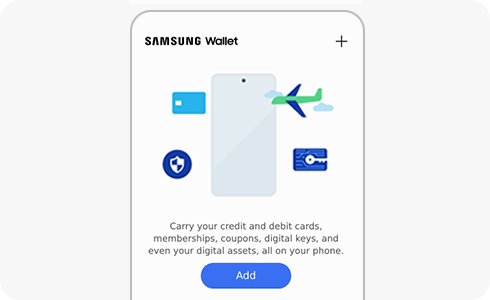
How to Make a Payment Using Samsung Wallet
Samsung Wallet allows you to make seamless payments using your Galaxy phone or smartwatch. Once a card is added and activated, you can quickly access Samsung Pay from your home screen, lock screen, or even when the device is turned off. Follow these steps to make a payment and understand how the service works globally.
1. How to Make a Payment with Samsung Wallet
To make a payment using Samsung Wallet, follow these steps:
- Ensure at least one payment card is added to Samsung Pay.
- Swipe up from the bottom of your screen on the home or lock screen to open Samsung Wallet.
- Select the card you want to use for payment.
- Hold your device near the payment terminal until the transaction is confirmed.
Note: Samsung Wallet can be accessed even when the phone is locked or the display is off.
2. Can I Use Samsung Wallet Abroad?
Yes, you can use Samsung Wallet while traveling internationally, provided your card issuer supports overseas transactions for the physical card. Currency exchange rates and applicable fees will remain the same as those for your physical card. For specific details, contact your card issuer directly.
- International usage depends on your card issuer's policies.
- Standard foreign transaction fees and exchange rates apply.
3. How Long Does It Take for a Card to Activate in Samsung Wallet?
After adding a card to Samsung Pay, activation typically takes 5–10 minutes once any required verification steps (such as entering an OTP) are completed. During this time, the card cannot be used for payments. A notification will confirm activation, and the card status will update accordingly.
- Activation is processed by the payment network and card issuer.
- An active internet connection is required to add and activate a card.
4. Supported Samsung Galaxy Devices
Samsung Wallet is compatible with most modern Galaxy devices, including the Galaxy S24, Galaxy S25, Galaxy Z Fold, Galaxy Z Flip, and Galaxy A series. Ensure your device runs the latest software version for optimal functionality.
5. Additional Things to Check
If you experience issues with Samsung Wallet, consider the following:
- Verify your internet connection during card setup.
- Confirm your card issuer supports Samsung Pay.
- Ensure your device has sufficient battery life for transactions.
Related Samsung Support Topics
Thank you for your feedback!
Please answer all questions.