How to use Samsung DeX
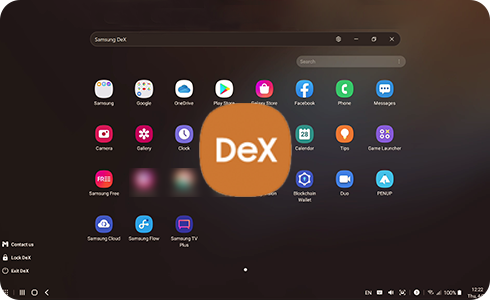
How to Use Samsung DeX on Galaxy Devices
Samsung DeX transforms your Galaxy smartphone or tablet into a desktop-like experience. Whether connecting to a monitor, TV, or PC, follow these steps to set up DeX using wired or wireless methods.
1. What Is Samsung DeX?
Samsung DeX is a productivity feature that lets you use your Galaxy device with a larger display, keyboard, and mouse. It's ideal for multitasking, working remotely, or enjoying media on a bigger screen.
2. How to Connect Samsung DeX to an External Display
To use DeX with a TV or monitor, you'll need specific accessories depending on your connection method:
- Wired Connection: Use a DeX Station, DeX Pad, or HDMI adapter to connect your Galaxy device to an external display.
- Wireless Connection: No accessories are needed. Simply enable DeX in your device's Quick Settings and pair with a compatible TV or monitor.
3. Supported Accessories for Samsung DeX
Officially supported accessories for wired connections include:
- DeX Station (EE-MG950)
- DeX Pad (EE-M5100)
- HDMI Adapters (EE-HG950, EE-P5000, EE-I3100, EE-P3200, EE-P5400)
Note: Accessories for tablets and foldable devices may differ. Always use genuine Samsung accessories for optimal performance.
4. How to Use Samsung DeX on a Tablet
Tablets offer three ways to activate DeX:
- Quick Settings Menu: Swipe down from the top of the screen, tap the DeX icon, and select a display.
- Long Press DeX Icon: Swipe down, long press the DeX icon, and choose a wireless display.
- Switch to TV or Monitor: If "DeX on PC" appears, tap "More Options" and select "Switch to TV or Monitor."
For wireless connections, ensure your TV supports Miracast or similar screen-sharing features. Samsung Smart TVs from 2019 or later are recommended for best performance.
5. PC Requirements for Samsung DeX
Your PC must meet these minimum requirements to run DeX:
- OS: Windows 10 (32/64 bit) or later
- Processor: Intel® Core™ i3 2.4 GHz or higher (i5 2.5 GHz recommended)
- Memory: 4GB (8GB recommended)
- Hard Disk Space: At least 500MB
- USB: 1 free USB 2.0 port (USB 3.0 recommended)
- Screen Resolution: 1024 x 768, 32-bit or higher
6. Troubleshooting Samsung DeX Issues
If DeX isn't working properly, try these solutions:
- Check Wi-Fi Connection: Ensure your PC and mobile device are on the same Wi-Fi network.
- Update Software: Make sure your device and PC have the latest software updates.
- Restart Devices: Restart your phone, PC, and connected display.
- Reduce Wireless Interference: Move closer to your router or switch to a less crowded Wi-Fi channel.
7. Supported Samsung Galaxy Devices
Samsung DeX is compatible with most Galaxy smartphones, tablets, and foldable devices, including:
Galaxy S24, S25, S26, Galaxy Z Fold, Galaxy Z Flip, and Galaxy A series.
Related Samsung Support Topics
Thank you for your feedback!
Please answer all questions.