How to solve an error when downloading an app from Galaxy Store
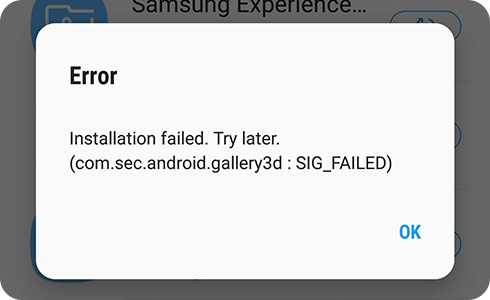
Why is my Samsung Galaxy phone failing to download apps from Galaxy Store?
If your Samsung Galaxy device fails to download apps from Galaxy Store, the issue could stem from insufficient storage, network connectivity problems, app conflicts, or temporary server outages. Follow these steps to resolve the issue effectively.
1. Check Device Storage Space
Ensure your device has sufficient storage space to accommodate the app you're trying to download. Galaxy Store requires at least 1.5 GB of free space or 2.5 times the app's size.
- Open Settings on your Samsung Galaxy device.
- Select Device Care or Battery and Device Care.
- Tap Storage to view available space.
- If storage is low, delete unnecessary files, apps, or media to free up space.
2. Restart Your Galaxy Device
Restarting your device can resolve temporary software glitches affecting Galaxy Store functionality.
- Press and hold the Power button on your device.
- Tap Restart and confirm.
- Once restarted, open Galaxy Store and attempt the download again.
3. Check Network Connectivity
A stable internet connection is essential for successful app downloads. Ensure your Wi-Fi or mobile data connection is active.
- Verify your Wi-Fi connection by opening a browser and visiting a website.
- If using mobile data, ensure you have sufficient data allowance.
- If the connection is unstable, restart your router or switch networks.
4. Clear Galaxy Store Cache and Data
Clearing the Galaxy Store cache and data can resolve persistent download errors caused by corrupted temporary files.
- Open Settings on your Samsung Galaxy device.
- Scroll down and select Apps.
- Find and tap Galaxy Store.
- Select Storage.
- Tap Clear Cache followed by Clear Data.
- Relaunch Galaxy Store and retry the download.
5. Update Galaxy Store
An outdated Galaxy Store app may cause compatibility issues. Ensure it is updated to the latest version.
- Open Galaxy Store on your device.
- Tap your profile icon in the top-right corner.
- Select Update if an update is available.
- After updating, retry the download.
6. Check for Server Outages
Occasionally, Galaxy Store servers may experience downtime or maintenance, preventing app downloads.
- Visit Samsung's official support page or social media channels to check for server status updates.
7. Contact Samsung Support with System Logs
If the issue persists, contact Samsung Support with system logs for further assistance.
- Open Galaxy Store on your device.
- Tap your profile icon in the top-right corner.
- Select Help & Settings.
- Choose Contact Us and follow the prompts to share system logs.
Supported Samsung Galaxy Devices
These solutions apply to most Samsung Galaxy devices, including Galaxy S24, Galaxy S25, Galaxy S26, Galaxy Z Fold, Galaxy Z Flip, and Galaxy A series devices.
Additional Things to Check
- Ensure your device's software is up-to-date via Settings > Software Update.
- Disable VPNs or firewalls that may interfere with Galaxy Store connectivity.
- Check if the app is region-restricted and available in your country.
Related Samsung Support Topics
Thank you for your feedback!
Please answer all questions.