How to fix Bixby voice command issues
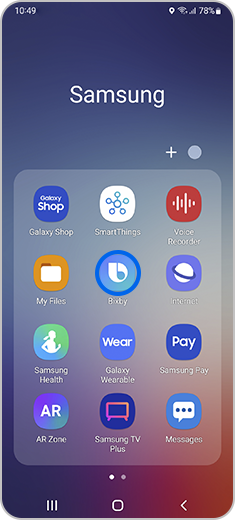
Why is Bixby not responding to "Hi, Bixby" commands on my Samsung Galaxy device?
If Bixby isn't responding to "Hi, Bixby" commands on your Samsung Galaxy device, it could be due to voice recognition issues, incorrect wake-up sensitivity settings, or corrupted Bixby data. Follow these steps to troubleshoot and restore Bixby functionality.
1. Why is Bixby not responding to "Hi, Bixby"?
Bixby may fail to respond to voice commands due to several reasons:
- Incorrect or outdated voice wake-up recordings.
- Low wake-up sensitivity settings.
- Corrupted Bixby data or cache.
- Background app conflicts or system glitches.
2. How to fix Bixby voice command issues
- Delete and re-record your voice wake-up:
- Improve voice wake-up accuracy:
- Adjust wake-up sensitivity:
- Clear Bixby data:
Open Bixby, tap the Discover (compass) icon, then select More (three vertical dots) and Settings. Toggle on Voice wake-up and delete your existing voice recording. Follow the on-screen instructions to register a new voice recording.
After re-recording, tap Improve voice wake-up accuracy and follow the prompts to enhance Bixby's responsiveness.
Set the Wake-up sensitivity slider to High for better detection.
Go to Settings > Apps, enable Show system apps, and clear storage data for Bixby Voice, Bixby Routines, Bixby Dictation, and Bixby Vision.
3. What if Bixby still doesn't work after troubleshooting?
If Bixby continues to malfunction, consider performing a factory data reset as a last resort. Note that this will erase all personal data on your device.
4. Supported Samsung Galaxy devices
This guide applies to Samsung Galaxy devices such as the Galaxy S24, Galaxy S25, Galaxy S26, Galaxy Z Fold, Galaxy Z Flip, and Galaxy A series.
5. Related Samsung support topics
Thank you for your feedback!
Please answer all questions.